Skip to content

Account and app · You remain in control

Everything about your dog’s care in one organised account

Create an account to view current rates securely in advance. We will then contact you personally to discuss your dog’s care needs. After registration, we contact you personally. Our assessment determines which care suits your dog and whether a place is available. Only our confirmation turns the request into a booking and fixes the amount agreed at confirmation. Any later paid change takes place only under arrangements shown in advance and expressly accepted.

  • Desktop and app
  • Current rates visible in advance
  • Changes free of charge
  • Messages and updates
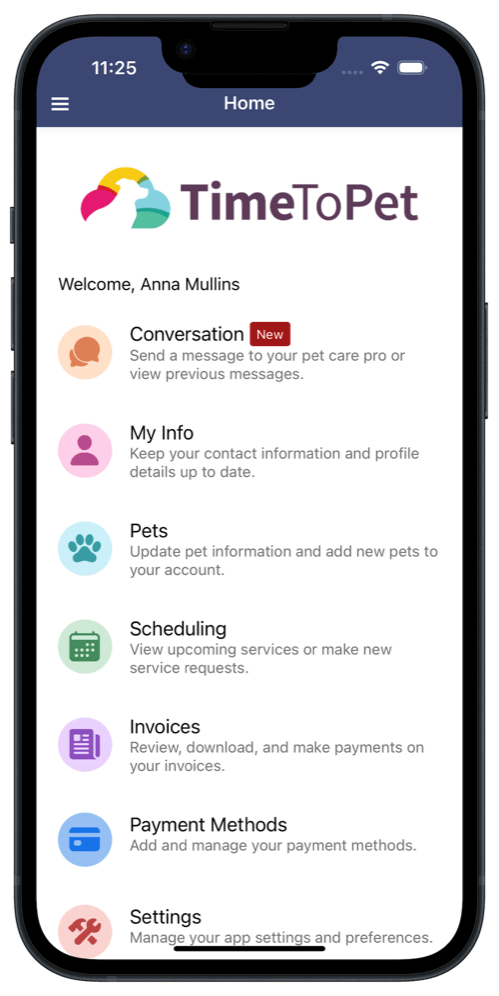
Time To Pet client app showing messages, dog profiles, scheduling, invoices and settings

Choose how you would like to begin

For an initial general question, an email is enough. You do not yet need to provide your name, full address, place of residence or telephone number. Choose email to discuss things first; request account access when you are ready to proceed or log in if you are already a client.

Start with an email enquiry

Email us the service and period you have in mind and what your dog needs. We will follow up personally to assess the care required. For this first contact, your email address is enough; your name, full address, place of residence and telephone number are not yet required.

Send an email


After registration, we contact you personally. Our assessment determines which care suits your dog and whether a place is available. Only our confirmation turns the request into a booking and fixes the amount agreed at confirmation. Any later paid change takes place only under arrangements shown in advance and expressly accepted.Read how we handle your data

Our approach

Individual care, not a standard programme

Create an account to view current rates securely in advance. We will then contact you personally to discuss your dog’s care needs.

FROM FIRST CHOICE TO CONFIRMED BOOKING

Request a stay and extra services

One central route for the customer app and computer. See where to start, when to add extras and what happens after submission.

01

From Home to your Service List

Choose the main stay service first. Then add any extra services before submitting the request.

  1. 1
    On Home, select ‘Scheduling’. On a computer, this section is called ‘Schedule’.
  2. 2
    Select ‘New Request’, then select ‘New Request’ once more in the window.
  3. 3
    Choose ‘Single Date’ or ‘Multiple Dates’, select ‘Select Date’, choose the date or dates and tap ‘Confirm’. Then continue with ‘Next’.
  4. 4
    Under ‘Which Service?’, choose the stay service first. Under ‘Which Pets?’, select the pet or pets.
  5. 5
    Enter any relevant information under ‘Additional Details For Us?’.
  6. 6
    Select the required time windows for the chosen date or dates and choose ‘Add Services’. The stay service will then appear in ‘Service List’. Then check the provisional total under ‘Estimated Total’ before choosing ‘Submit Request’.
02

Add extra services before ‘Submit Request’

Add care and other extra services while your request is still a draft. Once you use ‘Submit Request’, you can no longer add to the request yourself.

The English button labels below match the customer app exactly.

In the iPhone app

  1. Open the ‘Service List’ and tap ‘+ Add’ at the top right.
  2. Under ‘Which Service?’, choose the service, select the pet(s) and add any relevant details.
  3. Choose the date and time window, then tap ‘Add Services’ at the bottom.
  4. To add another service, tap ‘+ Add’ again in the ‘Service List’ and repeat these steps.

On a computer

  1. On the ‘Review’ screen, go to ‘Requested Services’ and select ‘Add More Services’.
  2. Select the pet(s), service, date, time window and any relevant details.
  3. Select ‘Add & Continue’ to return to the overview.
  4. To add another service, select ‘Add More Services’ again.
03

Check the cost before ‘Submit Request’

As soon as your account is created, the current rates are securely visible there — before you submit a request. Before ‘Submit Request’, check the selected rate and ‘Estimated Total/Estimated Cost’ in ‘Service List’ (app) or ‘Review’ (computer).

In the iPhone app

  1. Open ‘Service List’. The amount for each service appears on the right under ‘Total’.
  2. At the bottom, ‘Estimated Total’ shows the provisional total cost of all services in this request.
  3. If the services and amount are correct, only then tap ‘Submit Request’. Otherwise use ‘Remove’ or ‘+ Add’ to adjust the request.

On a computer

  1. Go to ‘Review’. ‘Requested Services’ lists every selected service and amount.
  2. Below the list, ‘Estimated Cost’ shows the provisional total cost of the request.
  3. Check the overview before selecting ‘Submit Request’. Use ‘Remove Service’ or ‘Add More Services’ to make changes first.

‘Estimated Total’ or ‘Estimated Cost’ is a provisional total. After registration, we contact you personally. Our assessment determines which care suits your dog and whether a place is available. Only our confirmation turns the request into a booking and fixes the amount agreed at confirmation. Any later paid change takes place only under arrangements shown in advance and expressly accepted.

04

What happens after ‘Submit Request’?

The submission stage determines what you can still add yourself. Every request remains subject to our approval.

Draft — still editable

Check all selected services and only then use ‘Submit Request’ to send the complete request.

Submitted — awaiting approval

Already used ‘Submit Request’, but the request has not yet been approved? You cannot reopen that submitted request to add services. Contact us if something needs to change at this stage.

Booking already approved? You can still add services

Request the extra service as a new, separate request in the customer app or on a computer. Once approved by us, we will integrate it into the existing booking.

Follow the existing booking and any additional request under ‘Scheduling’ in the iPhone app and under ‘Schedule’ on a computer.

A request is only final after we have approved it.

A considered match

What you can expect – and what we agree in advance

The following pages explain practical details and our approach to care.

What you can expect

  • a familiar, consistent carer;
  • careful matching with compatible dogs;
  • a balance of outdoor activity and recovery;
  • clear communication through your account.

What we establish beforehand

  • dates, times and handover arrangements;
  • food, medication and relevant health notes;
  • behaviour, energy level and social preferences;
  • any transport or additional bespoke service.

Frequently asked questions

Make an informed decision

If your question is not answered here, please email us before submitting a booking request.

Ask a question
Do I need the Time To Pet account?

Yes. Create an account to view current rates securely in advance. We will then contact you personally to discuss your dog’s care needs. After registration, we contact you personally. Our assessment determines which care suits your dog and whether a place is available. Only our confirmation turns the request into a booking and fixes the amount agreed at confirmation. Any later paid change takes place only under arrangements shown in advance and expressly accepted.

How do I check the cost before ‘Submit Request’?

As soon as your account is created, the current rates are securely visible there — before you submit a request. Before ‘Submit Request’, check the selected rate and ‘Estimated Total/Estimated Cost’ in ‘Service List’ (app) or ‘Review’ (computer). ‘Estimated Total’ or ‘Estimated Cost’ is a provisional total. After registration, we contact you personally. Our assessment determines which care suits your dog and whether a place is available. Only our confirmation turns the request into a booking and fixes the amount agreed at confirmation. Any later paid change takes place only under arrangements shown in advance and expressly accepted.

Can I change or cancel free of charge?

Yes. Booking requests, changes and cancellations can be managed in the client account without an administration charge.

How can I ask a question?

Email info@hondenhotel-amsterdam.com, or use the client account once it has been approved. This keeps practical arrangements traceable.

How do I start a new booking request?

On Home, select ‘Scheduling’. On a computer, this section is called ‘Schedule’. Select ‘New Request’, then select ‘New Request’ once more in the window. Choose ‘Single Date’ or ‘Multiple Dates’, select ‘Select Date’, choose the date or dates and tap ‘Confirm’. Then continue with ‘Next’. Under ‘Which Service?’, choose the stay service first. Under ‘Which Pets?’, select the pet or pets. Enter any relevant information under ‘Additional Details For Us?’. Select the required time windows for the chosen date or dates and choose ‘Add Services’. The stay service will then appear in ‘Service List’. Then check the provisional total under ‘Estimated Total’ before choosing ‘Submit Request’.

Can I add a service after ‘Submit Request’?

Add care and other extra services while your request is still a draft. Once you use ‘Submit Request’, you can no longer add to the request yourself. Already used ‘Submit Request’, but the request has not yet been approved? You cannot reopen that submitted request to add services. Contact us if something needs to change at this stage. Request the extra service as a new, separate request in the customer app or on a computer. Once approved by us, we will integrate it into the existing booking.

Where can I follow my request and booking?

Follow the existing booking and any additional request under ‘Scheduling’ in the iPhone app and under ‘Schedule’ on a computer.